Start with a good picture
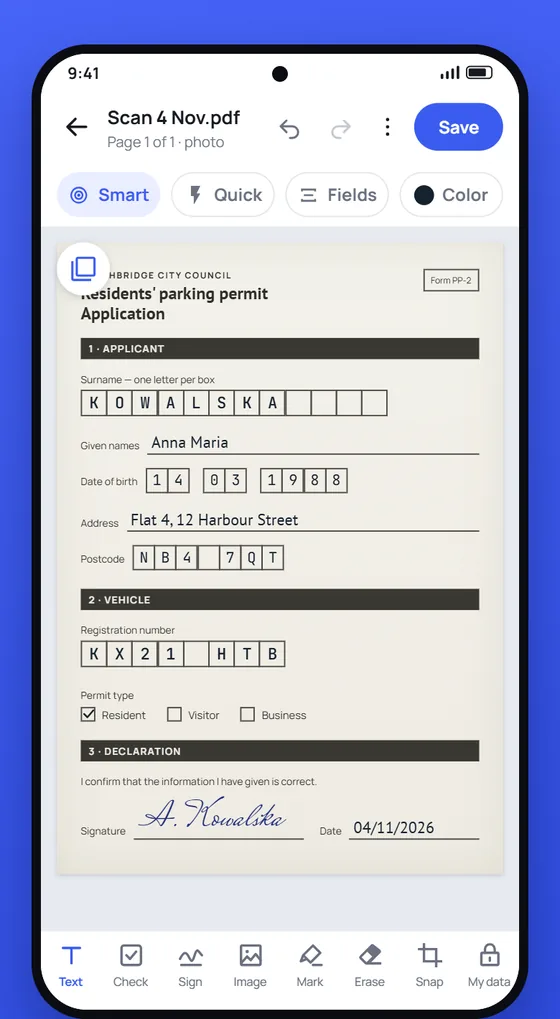
- With the Android app, tap Scan a form and point the camera at the page. The scanner finds the edges, straightens the page and crops it into a PDF.
- Taking an ordinary photo? Lay the page flat in even light, with no shadow across it, and shoot from straight above so the page fills the frame. Level lines in the photo give your text level lines to sit on.
- Already have a scan? A scanned PDF opens as it is, and so does a picture: JPG, PNG and the other common formats.
Fill it in
- Open it in the browser at geteffortly.com, in the Android app, or in Effortly for Windows. PDFs and pictures both open.
- Click a line and type. Effortly finds the lines and boxes in the picture itself, so a scan behaves just like a typed-up PDF: your text sits on the line, and letter boxes get one character each.
- Tick, sign and save. In Quick mode a tap on a square ticks it. Add your signature from the wallet, then save an ordinary PDF.
Already filled in by hand?
Maybe it’s last year’s form with someone else’s answers, or a sample the office filled in. Give your value the Smart background: it covers the handwriting but keeps the form’s lines, so your answer sits on a clean line instead of a white patch. To clear a whole area, drag the eraser over it with Smart chosen: the lines stay.
Before you send it
- Make it smaller. Photos make heavy PDFs. Compress re-encodes the photographed pages at the quality you choose, on your device: Save → Compress… in the browser, File → Compress… on Windows, the document’s menu on the phone.
- Scan on the phone, type on the computer. Connect your own Google Drive in the app and on your computer, and the scan is waiting there, ready to fill in. Your ten newest documents travel between your devices.
Questions
Can I type on a scanned PDF?
Yes. Effortly finds the lines and boxes in the scanned image and puts your text on them. There’s no need to convert the scan or run text recognition first.
What if my photo is a bit crooked?
Lines that aren’t level are harder to find. Take the photo again from straight above, or use Scan a form in the Android app, which straightens the page for you.
Is my scan uploaded anywhere?
No. It is opened, filled in and saved on your device. If you connect your own Google Drive, your documents sync there: your storage, not ours.
Can I fill in a form that already has handwriting on it?
Yes. The Smart background covers the old writing and keeps the form’s lines.
Is it free?
Yes, with no account and no watermark.
Try it on your form
Free · No sign-up · No watermark · Works offline · Files stay on your device